
If your G Suite (Google Workspace) emails are not sending or receiving, and you see errors like “domain’s DMARC policy not verified” or “message blocked due to authentication issues,” it usually means your DNS records are incomplete or incorrect.
This guide explains how to fix email delivery problems by updating your MX, SPF, DKIM, and DMARC records.
How to resolve the issue of G Suite mail not accepting the Domain’s DMARC policy verification?
Before that, we need to know why This Problem Happens
Google Workspace requires your domain to have correct DNS records. Missing or incorrect records cause Gmail and other mail servers to reject your messages.
The following are the main causes:
- Wrong or missing MX records
- Missing or invalid SPF
- DKIM not enabled
- DMARC not configured
- Conflicting DNS entries after hosting migration
Below are the two most common cases and how to fix each.
Case 1: G Suite is not receiving or sending emails through G Suite Mail. [Fix MX Records]
If you cannot send or receive emails from the G Suite mail, you need to add the G Suite MX Records to your hosting cPanel. This problem occurs when you host your domain on third-party platforms like GoDaddy, Hostinger, Bluehost, etc. You must manually add Google’s MX records. If your MX records are missing or incorrect, you will face:
If your MX records are missing or incorrect, you will face:
- Emails not arriving
- Emails bouncing
- Errors in Google Admin Console
Correct G Suite MX Records
| Name/Host/Alias* | Priority | Value/Answer/Destination |
| Blank or @ | 1 | ASPMX.L.GOOGLE.COM |
| Blank or @ | 5 | ALT1.ASPMX.L.GOOGLE.COM |
| Blank or @ | 5 | ALT2.ASPMX.L.GOOGLE.COM |
| Blank or @ | 10 | ALT3.ASPMX.L.GOOGLE.COM |
| Blank or @ | 10 | ALT4.ASPMX.L.GOOGLE.COM |
Follow the step-by-step process on how to add the G Suite MX Records to your hosting cPanel
- Log in to your cPanel
- Select the zone editor under the domain section
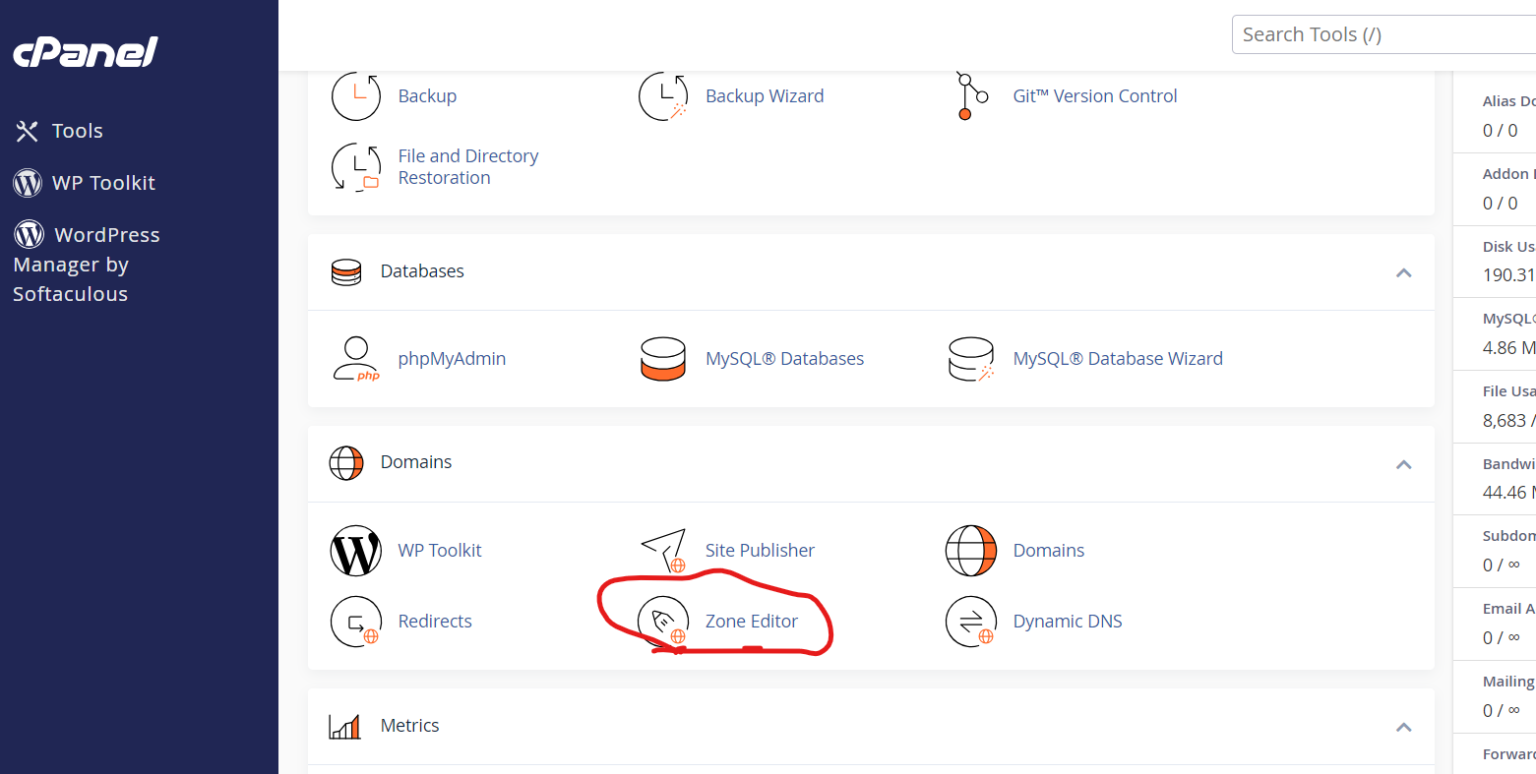
- Click on MX Records
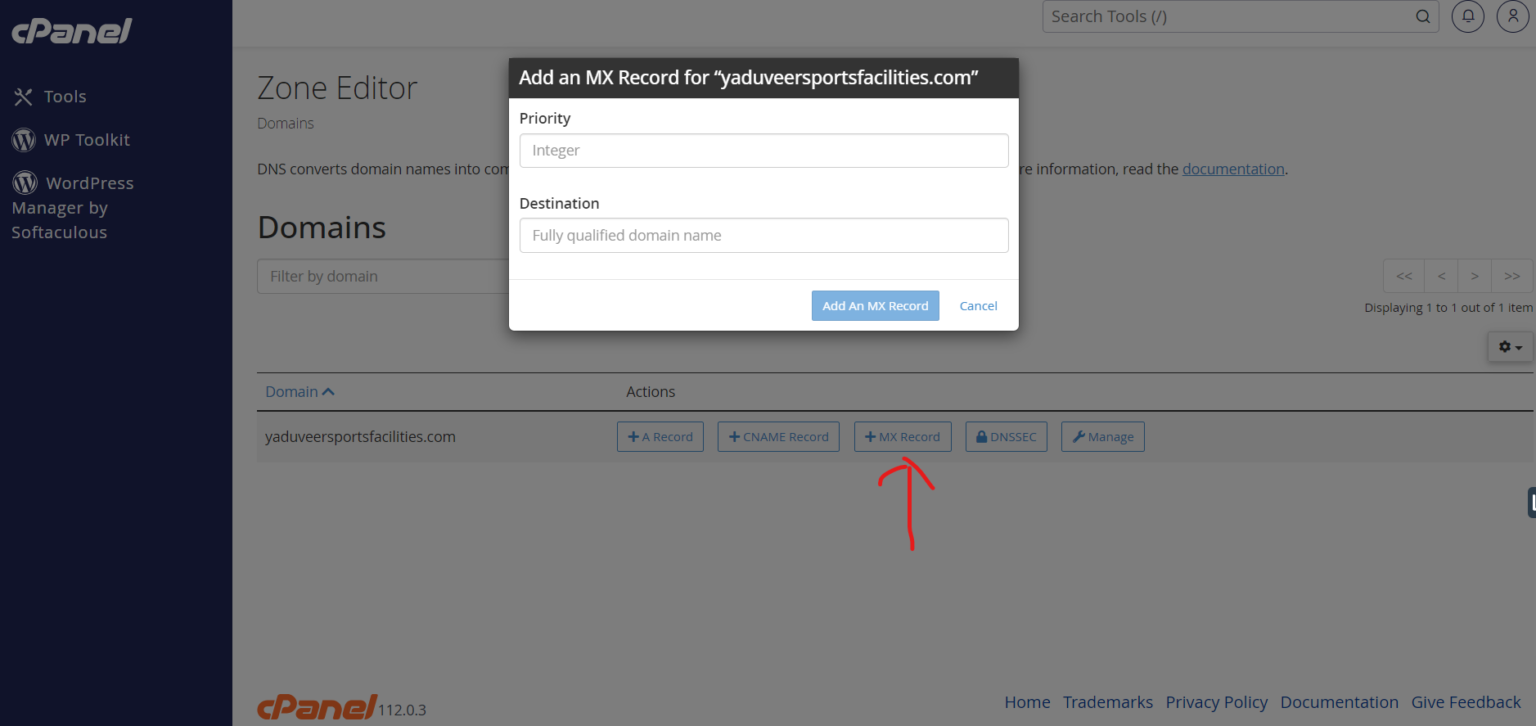
- Delete any old or non-Google MX entries
- Now add all 5 Google MX records listed above
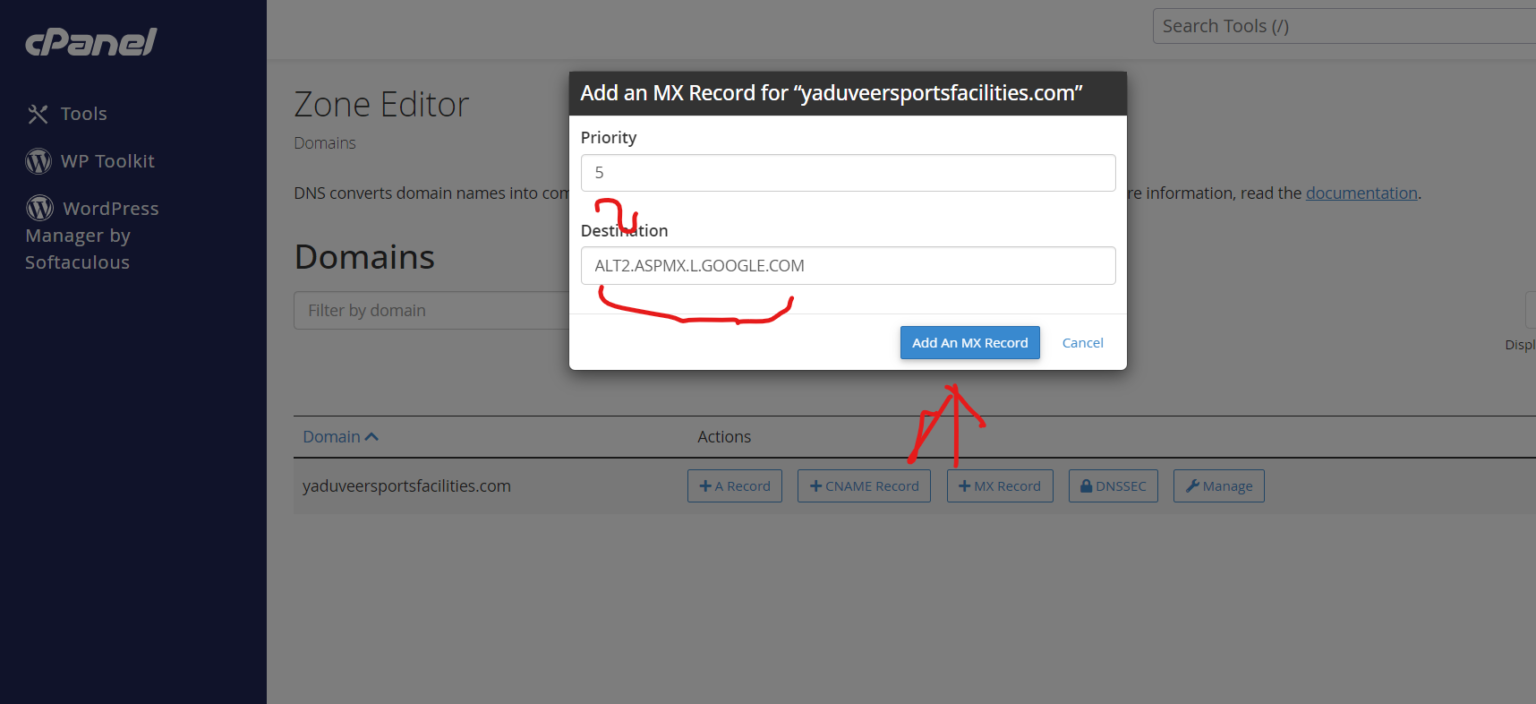
- Click Save changes.
- Now test your mail after the propagation time, which is 8-24 hours.
Case 2: DMARC Policy Not Verified (Fix SPF, DKIM, DMARC)
If Gmail flags your domain’s DMARC policy or your outgoing mail is blocked, you need to configure SPF, DKIM, and DMARC authentication.
Follow the step-by-step process on how to enable your DMARC on your hosting cPanel
- Log in to cPanel
- Open the zone editor under the domain section
- Click on Manage under your domain
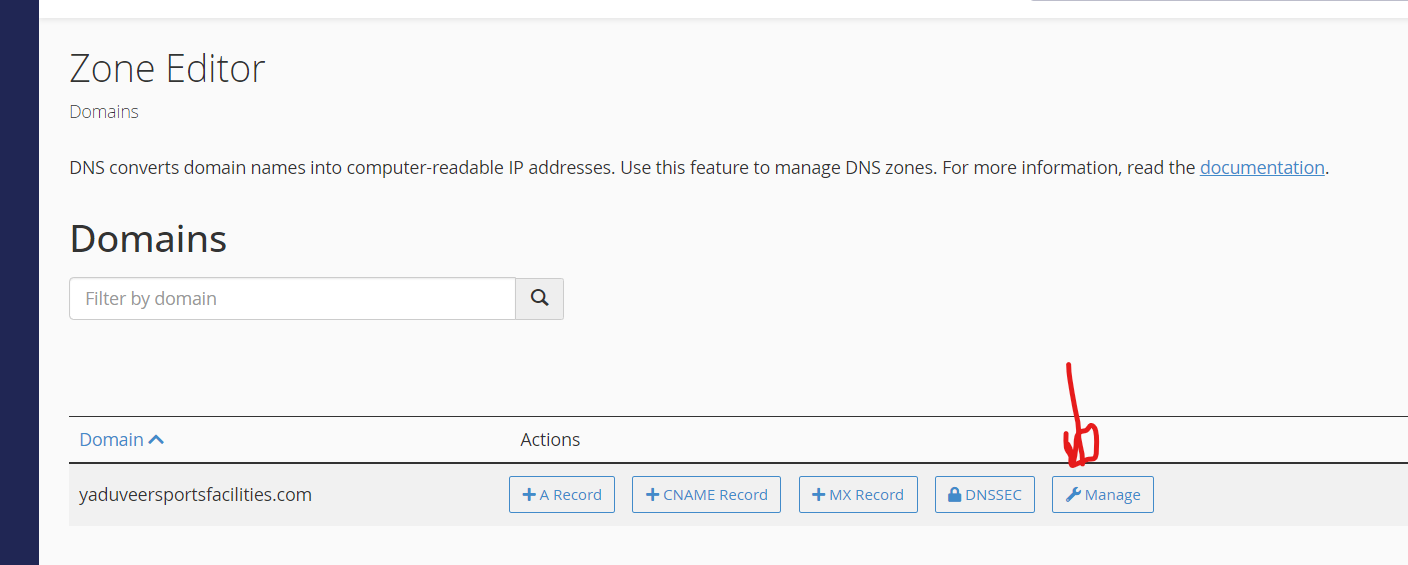
- Identify your DMARC, DKIM and SPF records
Step 1: Add or Update SPF Record
Your SPF record should be:
v=spf1 include:_spf.google.com ~allOnly one SPF record is allowed. Delete duplicates.
Step 2: Enable DKIM in Google Admin Console
- Enable your DMARC by checking the none option

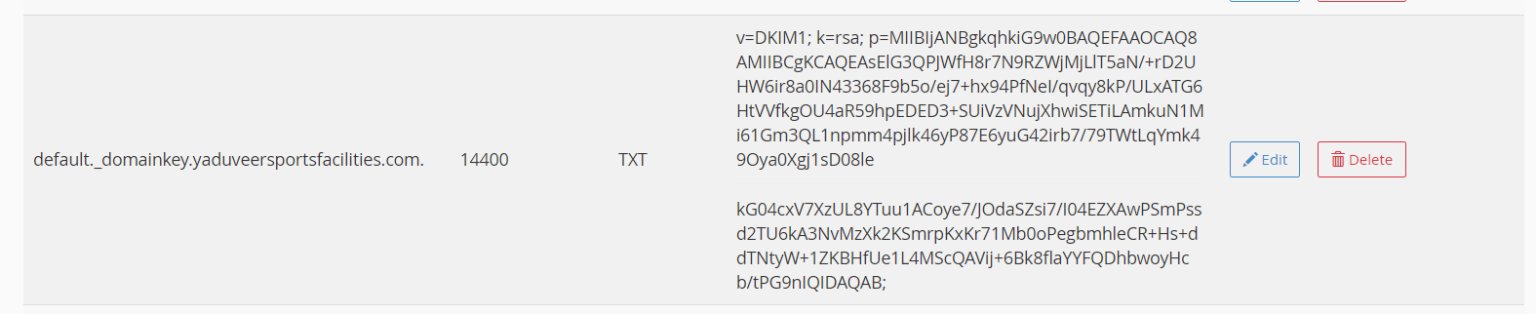
- Save changes
- Now test your mail after propagation time, which is 6-10 hours
After DNS updates:
- Send a test email to Gmail
- Click Show Original
- Ensure all three pass: SPF = PASS, DKIM = PASS, DMARC = PASS
Still Not Working?
You may still have issues if:
- Cloudflare is proxying mail records
- Duplicate SPF/DMARC records exist
- ISP caching delays occur
- The domain is suspended or inactive
You can share your DNS screenshot for help. Comment below.