
If you’re using a WordPress website or blog and maintaining a professional domain email with Zoho and you may sometimes encounter the issue where Zoho Mail not receive emails from Contact Form 7 or other WordPress form plugins. This is a common problem caused by missing configurations between your WordPress server and the Zoho Mail Platform.
In this Article, you will learn the step-by-step solution to fix Zoho Mail not receiving from Contact Form 7 and ensure your contact form works correctly.
Why Zoho Mail Is Not Receiving Emails From WordPress?
Zoho Mail operates on a separate email server, and when you’re using a domain-based professional email (yourname@yourdomain.com), you must properly connect your WordPress site with Zoho’s authentication system. Without this integration, your forms (Contact Form 7, Forminator, WPForms, etc.) may fail to send emails to your Zoho inbox.
The solution is simple: configure the Zoho Mail for WordPress plugin and authorize it using Zoho API Console.
Step-by-Step Fix for Zoho Mail Not Receiving Emails
Step 1: Install and Activate the Zoho Mail for WordPress Plugin
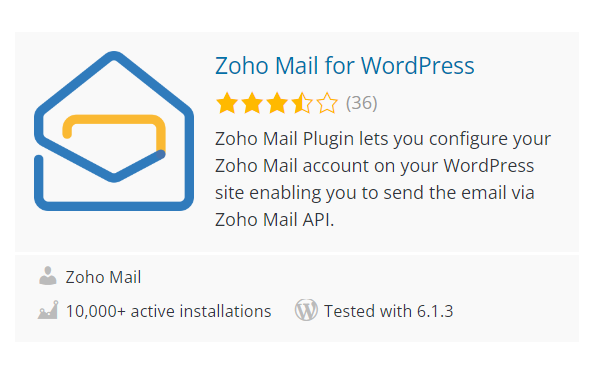
Step 2: Select your Zoho Account
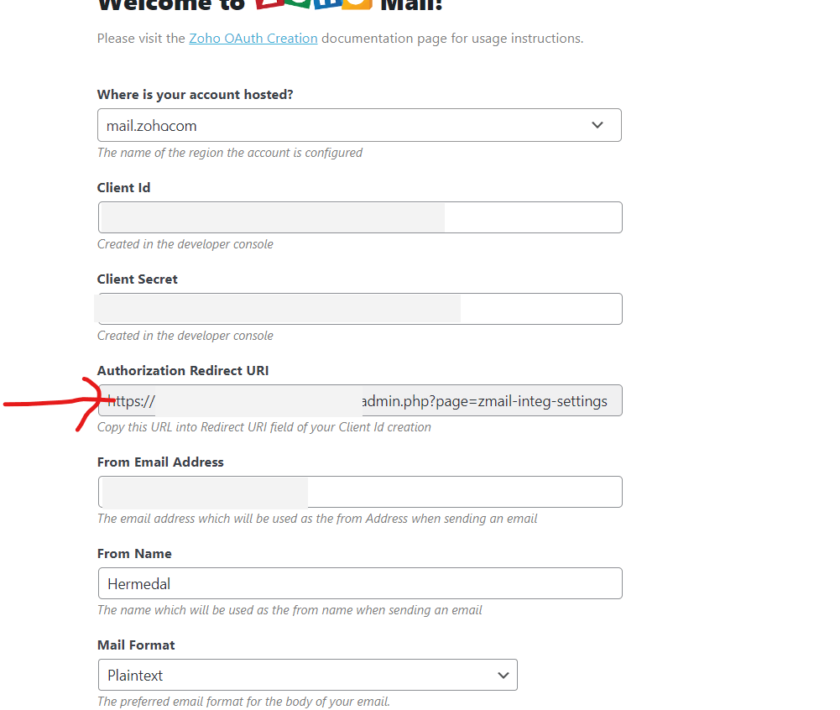
Once you have activated the plugin, choose your Zoho account hosted on zoho.com or zoho.in, select according to your Zoho account. To generate the client ID and client secret codes, copy the authorization redirect URL that you must use to connect Zoho with WordPress and now go to Zoho API Console
Step 3: Create a Server-Based Application in Zoho API Console
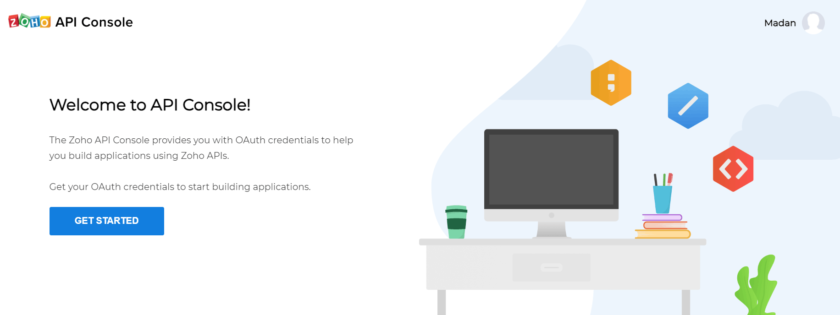
- Log in to the Zoho API Console.
- Click Get Started.
- Choose Server-based Application.
- Click Create Now.
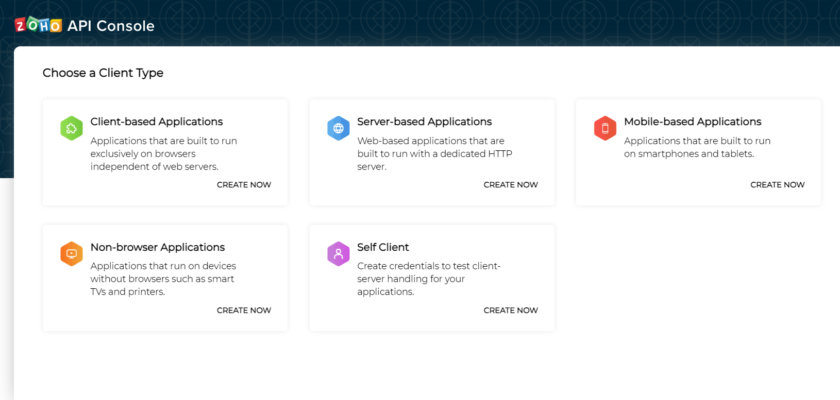
Fill in the following details in the fields:
- Client Name – Your website name
- Homepage URL – Your website URL
- Authorized Redirect URL – Paste the link copied from the plugin
Submit the details to generate your Client ID and Client Secret.
Step 4: Connect Zoho Mail With WordPress
Copy the Client ID and Client Secret from the Zoho API Console and paste them into the Zoho Mail for WordPress plugin settings.
Verify your Zoho account by logging in when prompted.
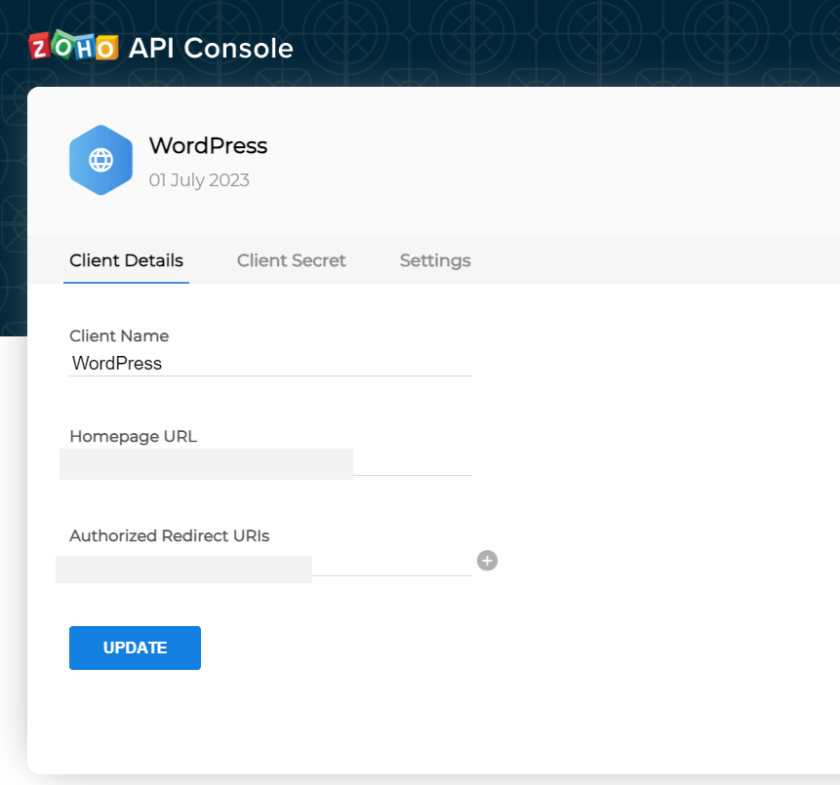
Now under server-based application fill in the details of your client name, home URL of the website and past authorized redirect URL which you copied from Zoho Mail for the WordPress Plugin.
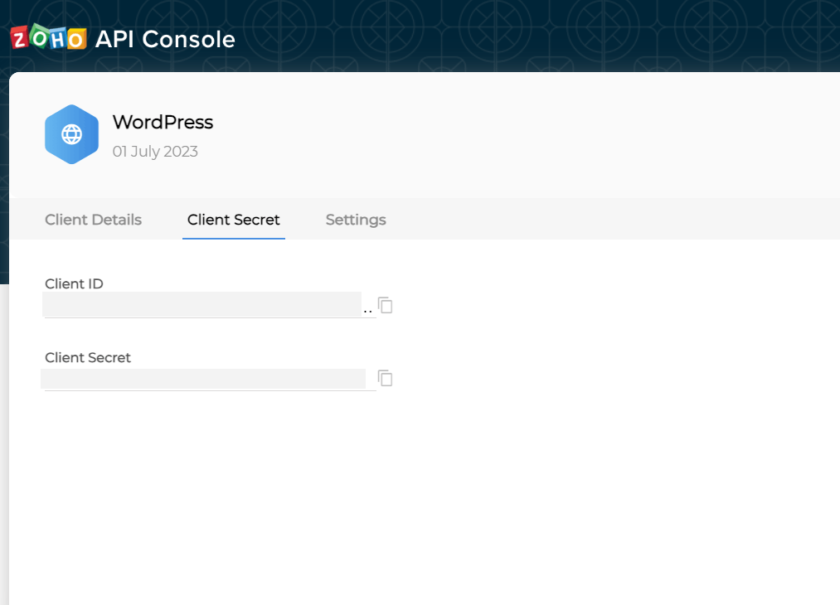
Now you access the Client ID & Client Secret code copy and paste on Zoho mail for WordPress Plugin.
Step 5: Test Your Contact Form
Now that everything is configured:
- Submit a test form via Contact Form 7, Forminator, or any other contact form plugin.
- You should now receive the emails directly inside your Zoho Mail inbox.
This confirms the fix for Zoho Mail not receiving emails from your WordPress site.
Now you can verify your Zoho account with login once and test that your website form (contact form 7, forminator any form) is working to send mail to Zoho mail.
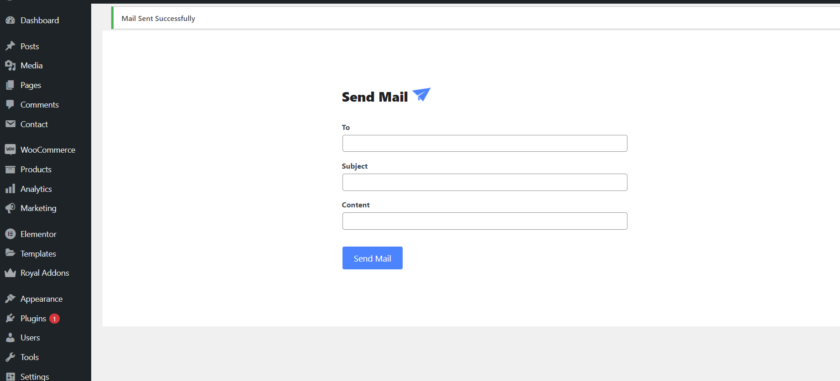
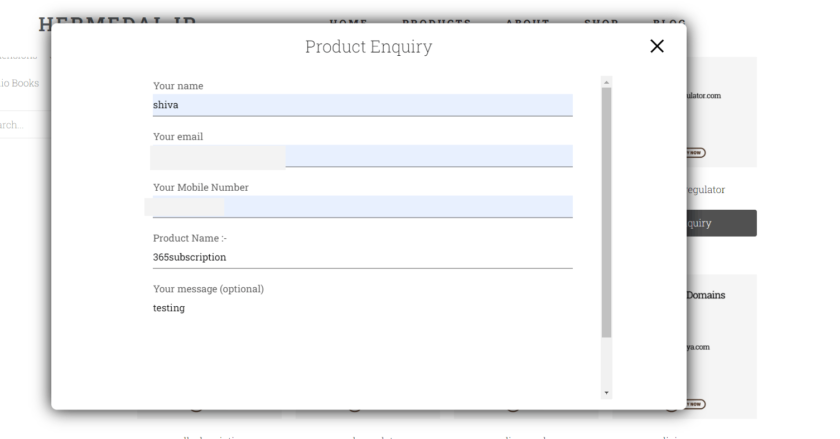
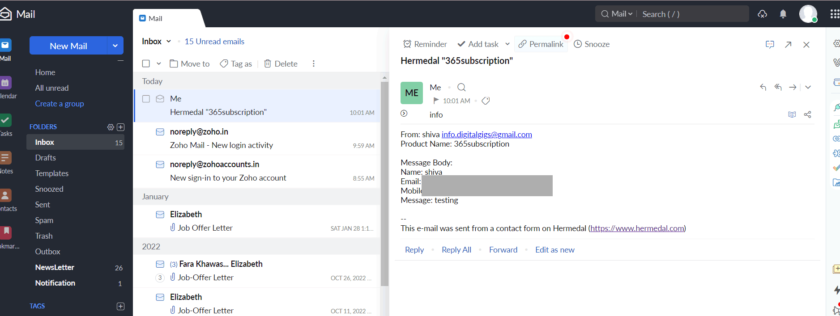
The above screenshots are the results of receiving mail from wordpress.
This is a straightforward solution to connect the WordPress Website to the Zoho Platform.
Still Not Receiving Zoho Mail? Additional Fixes
If the issue persists:
✔ Check SMTP Settings
Ensure SMTP authentication is correctly set up in your WordPress mail plugin.
✔ Add Zoho MX Records
Login to your domain DNS panel and add the required Zoho MX records. Missing or incorrect DNS records are a major cause of Zoho Mail not receiving emails.
Conclusion
Fixing Zoho Mail not receiving emails from Contact Form 7 is simple once your WordPress website is properly connected to the Zoho platform. By using the Zoho Mail for WordPress plugin and configuring the Zoho API Console settings correctly, your contact forms will begin delivering messages instantly.
If your Zoho Mail is still not receiving emails, double-check your SMTP setup and DNS MX records.